Lacefall
How to start the screen saver with a hot corner on Mac
Waiting for the screen saver to start by itself is fine when you walk away. When you want it right now, because you are stepping out for a coffee or want the room to go calm, a hot corner is the fastest route. You move the pointer into a corner of the screen and macOS does the rest.
Open System Settings, choose Desktop & Dock, scroll down and click Hot Corners. Open the pop-up menu for a corner, choose the option that starts the screen saver, then click Done. Hold a modifier key such as Command while choosing if you want the corner to fire only with that key.
What a hot corner is
Each of the four corners of the screen can be given a job. When you push the pointer all the way into that corner, the job runs. Apple’s list includes opening Notification Center, showing your apps, locking the screen and starting the screen saver. By default one corner already has a job: the bottom-right corner opens a Quick Note on many Macs.
Corners are easy to hit because the pointer stops at the edge of the screen. You don’t have to aim. That is what makes them handy, and it is also why they sometimes fire when you didn’t mean them to.
Set a corner to start the screen saver
- Choose Apple menu > System Settings.
- Click Desktop & Dock in the sidebar. You may need to scroll down to see it.
- Scroll to the bottom of the page and click Hot Corners.
- Open the pop-up menu for the corner you want and choose the option that starts the screen saver.
- Click Done.
Now move the pointer into that corner. The screen saver starts at once, whichever one you have chosen in the Screen Saver settings. Move the mouse or press a key to come back.
Pick the right corner
Think about where your pointer already goes. A few patterns that tend to work:
- Top corners sit near the menu bar. If you often reach for menu items on the far left or far right, a top corner may fire by mistake.
- Bottom corners sit near the Dock. If your Dock is at the bottom, you may brush past them while reaching for an app.
- The corner opposite your Dock is often the quietest. If the Dock is on the left, the right-hand corners see less traffic.
There is no single right answer. Try one for a day and move it if it gets in the way.
Stop it firing by accident
Apple lets you add a modifier key to a hot corner. While the pop-up menu is open, hold down Command, Shift, Option or Control (or a combination of them) and then choose the option. The corner will only work while you hold that key.
This is the best fix if a corner keeps going off while you work. The shortcut stays just as fast when you want it: hold the key and flick the pointer into the corner.
Screen saver or lock: they are not the same
Starting the screen saver and locking the screen are two different jobs in the corner menu. Whether the Mac asks for your password when you come back from the screen saver depends on your Lock Screen settings, under Apple menu > System Settings > Lock Screen. There you choose how long after the screen saver begins the password is required.
If you want the corner to protect the Mac when you walk away, check that setting. If you only want something calm on the screen while you sit nearby, the screen saver corner on its own is enough. You can give one corner each job.
Turn a hot corner off
Go back to System Settings > Desktop & Dock > Hot Corners, open the corner’s pop-up menu and choose the dash (no action), then click Done. Nothing else changes; your screen saver and its timing stay as they were.
If the corner does nothing
- Check that you chose the corner you are testing. The four menus are laid out like the screen, but it is easy to set the wrong one.
- If you added a modifier key, the corner only works while that key is held.
- Push all the way to the very corner. Near the corner is not enough.
- A full-screen app or video can make the pointer feel like it stops short of the edge. Exit full screen and try again.
Still nothing? Test the screen saver itself with the preview in System Settings > Screen Saver. If the preview works, the problem is the corner setting; if not, start with the guide to changing the screen saver on Mac.
Common questions
Can a hot corner start the screen saver on Mac?
Yes. In System Settings > Desktop & Dock > Hot Corners, choose the screen saver option for any corner and click Done.
How do I stop a hot corner from triggering by accident?
Hold Command, Shift, Option or Control while choosing the option in the corner’s menu. The corner then works only while that key is held.
Does a hot corner lock my Mac?
Only if you choose the lock option, or if your Lock Screen settings ask for a password after the screen saver starts.
Which screen saver does the hot corner start?
The one selected in your Screen Saver settings. The corner just starts it early.
How Lacefall helps
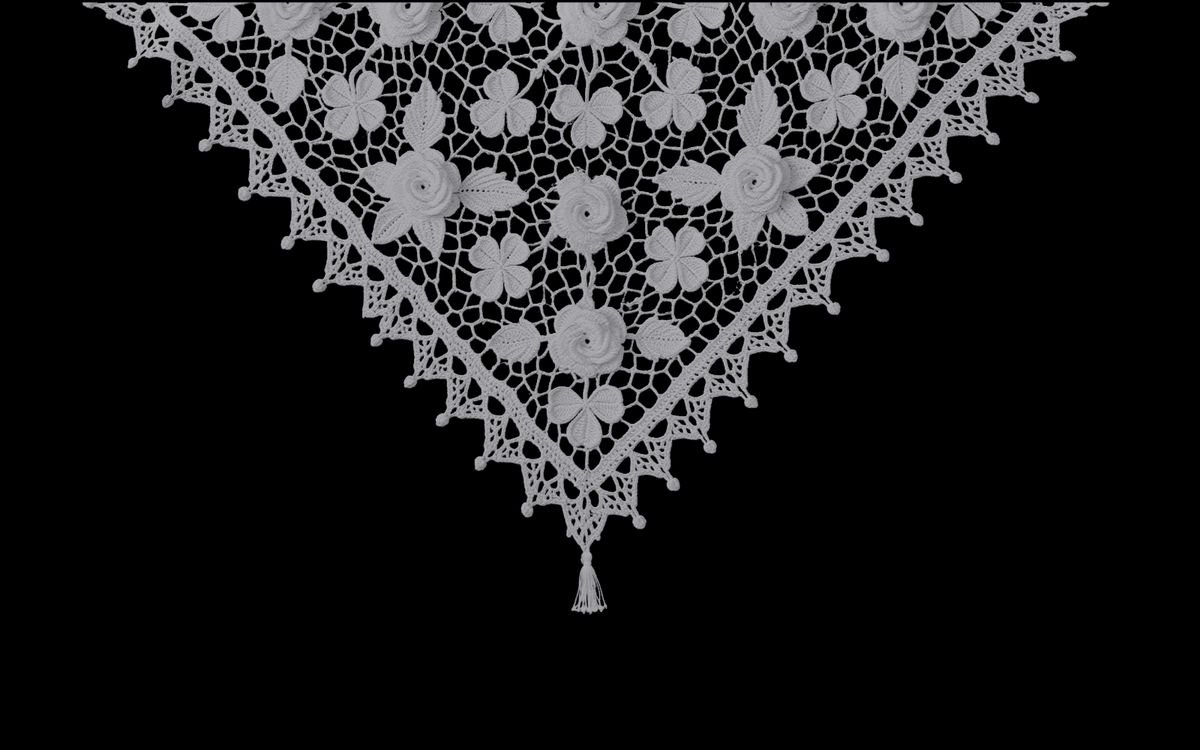
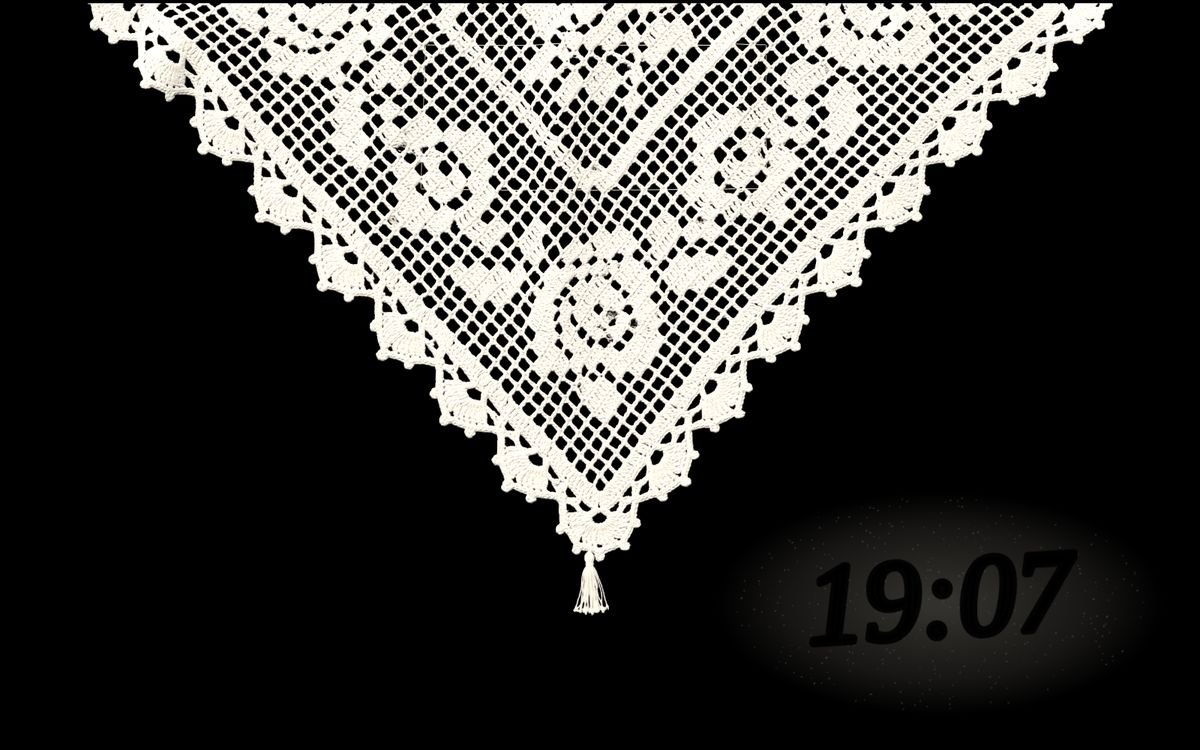
Lacefall is a lace screen saver for Mac. Once you choose Make Lacefall my Mac’s screen saver and then pick Lacefall in System Settings, a hot corner starts the lace like any other screen saver.
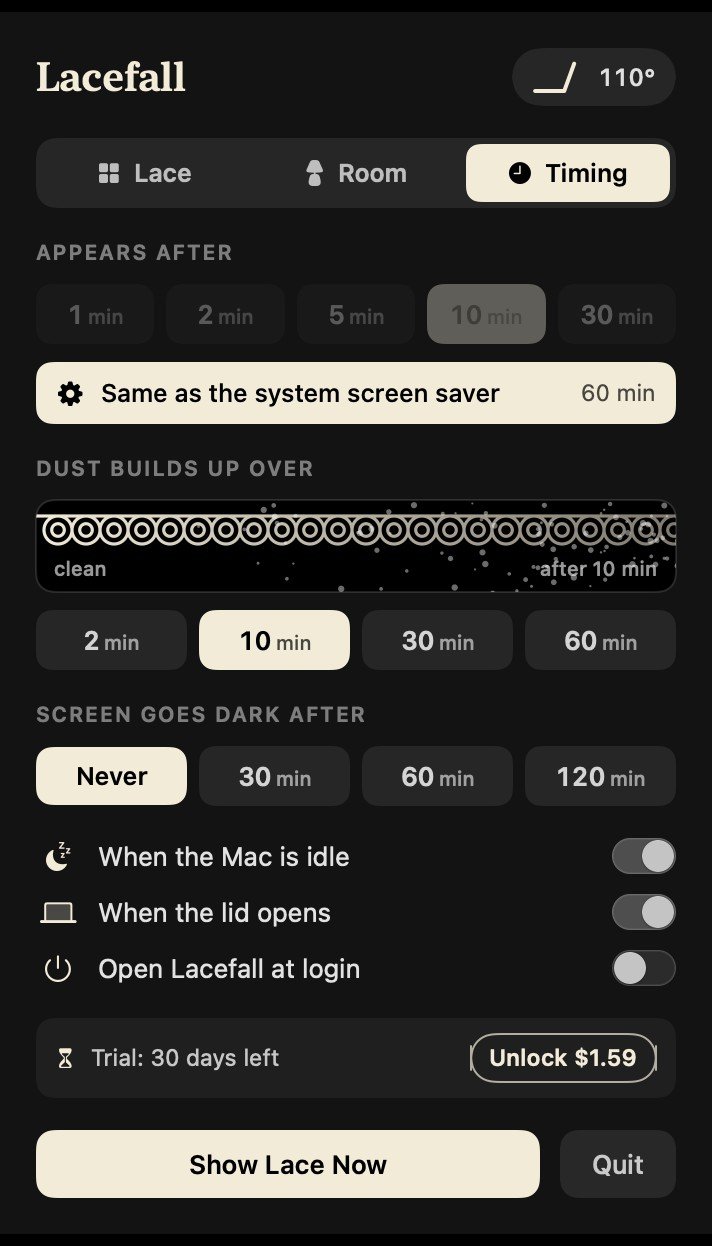
In the Timing tab, Let macOS decide when it appears hands timing over to your Mac, so the idle time, the Lock Screen settings and your hot corners all apply as usual. If you would rather see the lace without changing anything in System Settings, the menu bar has Show Lace Now.