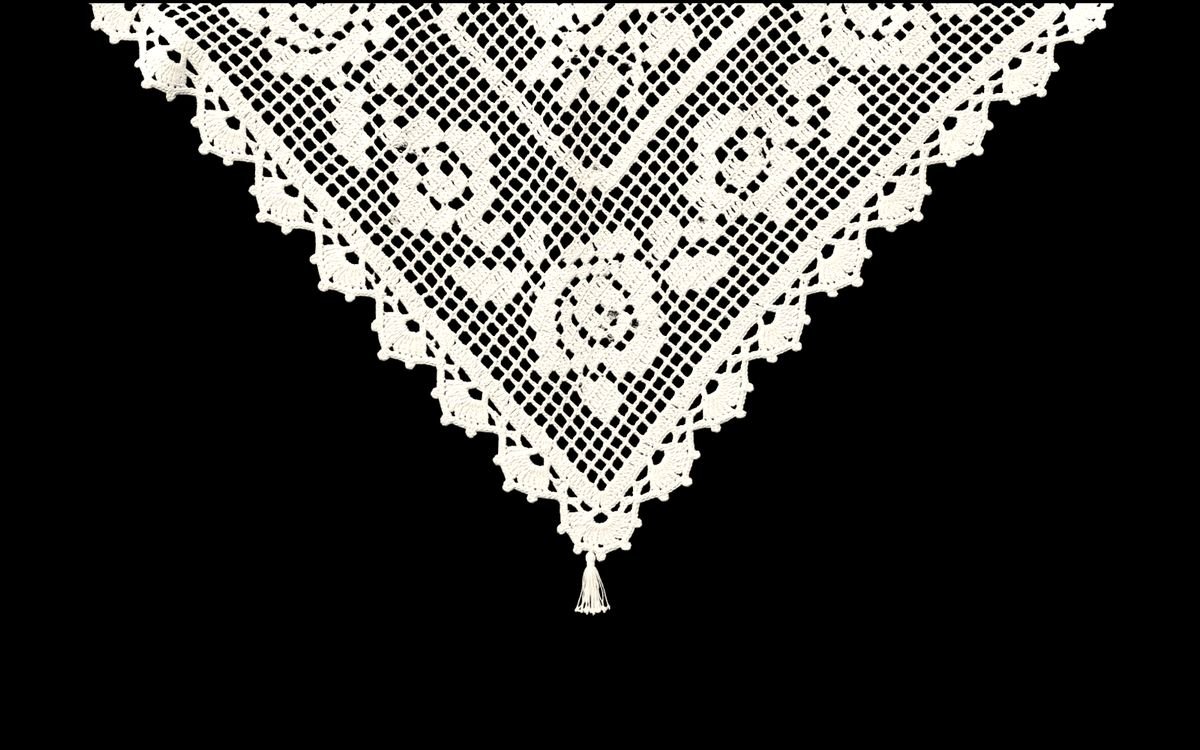
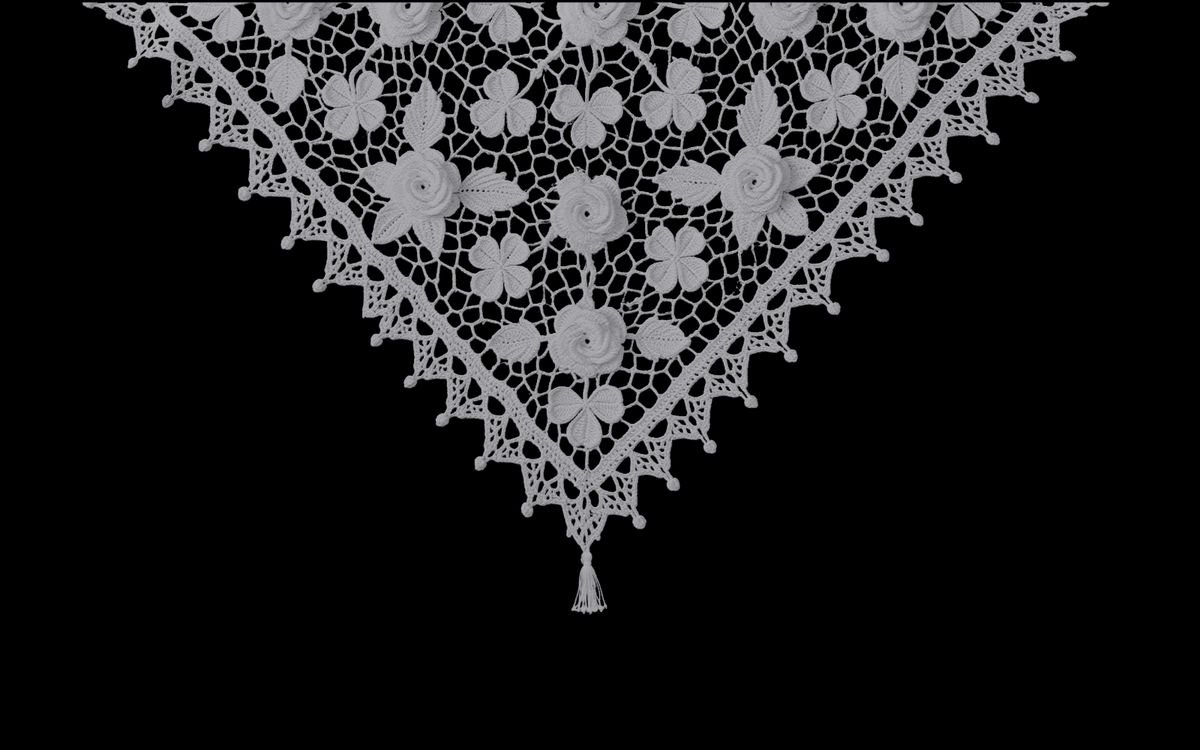
Lacefall
A Mac screen saver with a clock: what to look for
A screen saver that shows the time turns a resting Mac into a desk clock. You glance over from the sofa or the kitchen and know how late it is without touching anything. Not every clock is pleasant to live with, though. Here is what to look for, and how to set one up.
Pick a screen saver that includes a clock, select it in System Settings > Screen Saver, and set when it starts under Lock Screen. A good clock is readable from a distance, calm enough not to pull your eye all day, and does not drain the battery when the Mac is unplugged.
Why put a clock on the screen saver
When the Mac is idle the screen still sits in the middle of your desk. A clock gives that screen a use: you can check the time from across the room, keep an eye on a meeting that starts soon, or notice it is getting late in the evening. It also tells anyone walking past that the Mac is simply resting, not switched off.
What makes a clock easy to live with
- Readable from a distance. The point is to glance, not to lean in. Large, clear shapes beat thin text.
- Calm. A clock that flashes or moves fast pulls your eye every few seconds. On a screen you see all day, slow is better.
- Part of the picture. A clock that belongs to the image feels like decoration. A box of numbers stuck on top feels like a notification that never goes away.
- Easy to switch off. Some days you want the time, some evenings you don’t. A good screen saver lets you hide the clock without changing the whole look.
- Kind to the battery. On a laptop the screen saver may run for a long time on battery. Look for one that slows down when nobody is watching.
Choose and test the screen saver
Screen savers are chosen in one place on Mac.
- Choose Apple menu > System Settings, then click Screen Saver in the sidebar.
- Click the screen saver you want. Some have their own options button.
- To see it right away, use a hot corner or choose Apple menu > Lock Screen.
Apple’s guide covers choosing a screen saver, shuffling them and the Other group for your photos and message-style savers. A clock style comes from the screen saver itself, so check its own options.
Set when it appears
A clock is only useful if the screen saver actually starts. Under Apple menu > System Settings > Lock Screen you choose how long the Mac waits while idle before the screen saver begins, and how long after that the password is required. A shorter wait means the clock shows up sooner when you step away. If you also want the display to stay on long enough to read the time, make sure the screen-off delay there is longer than the screen saver delay.
Start it on demand
If you want the clock now, a hot corner is the quickest way: push the pointer into the corner and the screen saver starts. In System Settings > Desktop & Dock > Hot Corners, give a corner the screen saver option. Holding a modifier key such as Command while choosing means the corner only fires with that key.
A note on time and the battery
A clock changes at least once a minute, so the screen saver keeps drawing. On a desktop Mac that hardly matters. On a laptop running on battery, a slow, simple animation is the friendlier choice, and a screen saver that drops its frame rate when idle helps even more. If you mostly want to save power, a shorter screen-off delay under Lock Screen is the real saving; the clock then simply rests with the display.
Common questions
Can a Mac screen saver show the time?
Yes, if the screen saver you pick includes a clock. Choose it in System Settings > Screen Saver and check its own options.
How do I make the clock screen saver start sooner?
Open System Settings > Lock Screen and shorten the idle time before the screen saver starts.
Can I start the screen saver straight away?
Yes. Set a hot corner to start the screen saver, or choose Apple menu > Lock Screen.
Does a clock screen saver use more battery?
It keeps drawing while the time changes. A calm design that slows down when idle uses less; turning the display off sooner saves the most.
How Lacefall helps
Lacefall is a lace screen saver for Mac, and the time is part of the lace. In the Room tab, under The time, you choose one of four styles:
- Stitched in: the hours and minutes are worked into the cloth.
- Written in dust: the time shows up in the dust that settles on the lace.
- Beads on the edge: a row of beads along the edge tells the time.
- No clock: just the lace.
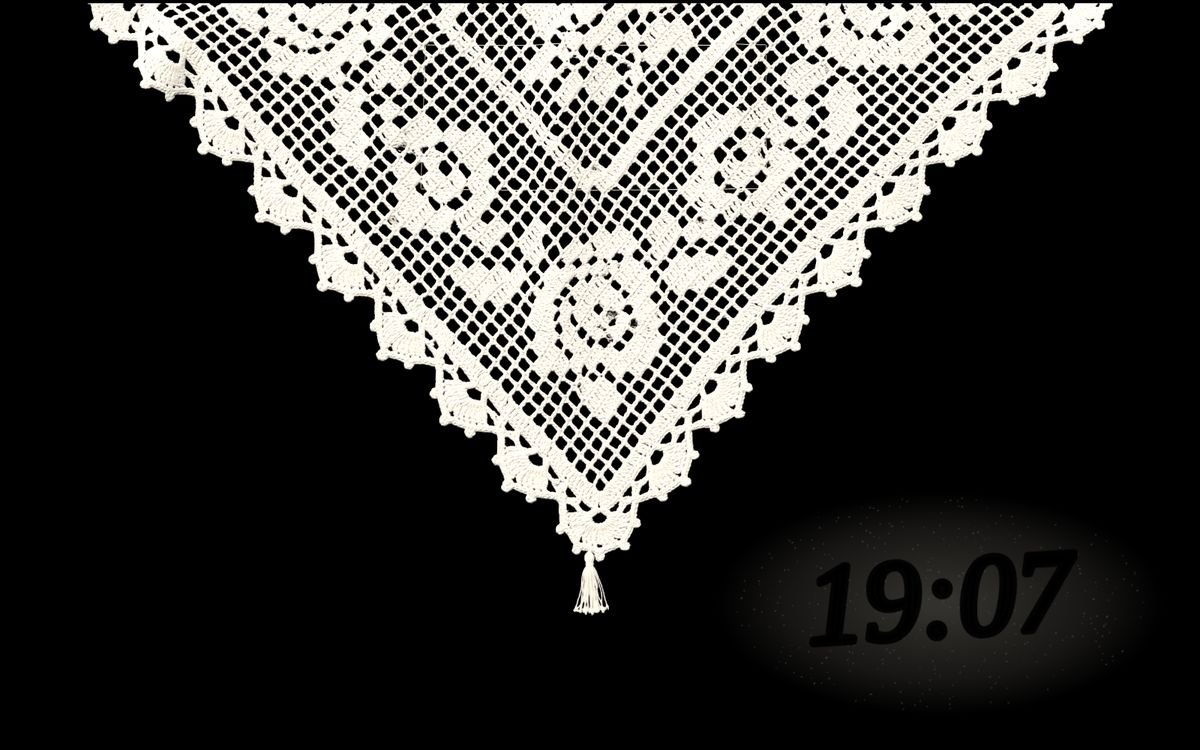
Turn on Tassel ticks like a pendulum and the tassel at the tip swings like an old clock. On battery Lacefall runs at 30 frames per second, and after five idle minutes it drops to 5, so the clock stays calm on a laptop.
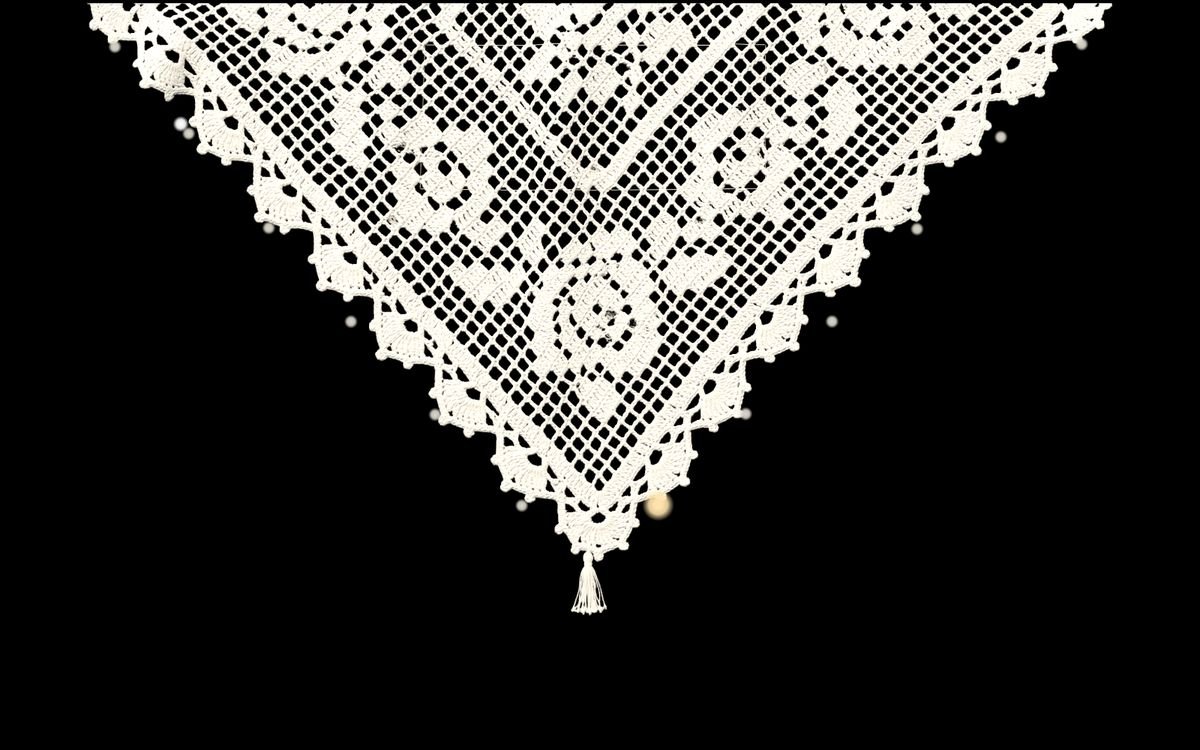
Clock styles are part of the full version; the Lite version keeps them locked, and the 30-day trial includes them.