Lacefall
How to find and enter a licence key in a Mac app
Many apps sold directly by their developers unlock with a licence key: a line of letters and numbers that arrives by email after you pay. Entering it takes a few seconds, as long as the whole key makes it from the email into the app.
What a licence key is
A licence key is proof of purchase in text form. The app reads it and, if it is genuine, unlocks the paid features. Some keys are tied to the email address you bought with, so the app can show you who the licence belongs to. Keys are long on purpose, which is why typing them by hand is a bad idea.
Find the email
The key is usually in the receipt or a separate message sent right after the purchase. If it isn’t at the top of your inbox, search for it in Mail:
- Click in the search field in the Mail toolbar. If you don’t see it, click the Search button first.
- Type the app’s name or the word “licence” or “license”, then choose one of Mail’s suggestions.
- If the current mailbox shows nothing, click Search all mailboxes below the search field. Junk is worth a look too.
Once you find it, keep that email. Flag it or move it to a folder you’ll remember. It is the easiest place to find the key again later.
Copy the whole key
Most failed activations come down to a key that was copied incompletely. A few habits avoid that:
- Select the key carefully from its first character to its last. Long keys can wrap across lines in an email; make sure the selection covers every line.
- Copy with ⌘ Command-C, or choose Edit > Copy.
- Don’t retype it. Letters such as O and the number 0, or l and 1, are easy to confuse.
- Watch for a stray space or line break at either end. Some apps ignore them, some don’t.
Paste it in the right place
Where the field is depends on the app. Common places are the app’s Settings window, a Register or Activate item in the app menu, or, for apps that live in the menu bar, the panel that opens from their icon.
Click in the field to place the insertion point, then paste with ⌘ Command-V or Edit > Paste. Click the activate button and wait for a confirmation.
When the key is not accepted
- Part of it is missing. Go back to the email and copy it again, slowly, including every line.
- It is for another app. If you have bought several apps, check that the email is about the one you are unlocking.
- Extra characters crept in. Paste the key into a plain text note first to see exactly what was copied, then copy it again from there.
- Still stuck. Reply to the purchase email. The developer can see your order and resend the key.
Keep it safe, keep it private
A licence key is personal. Don’t post it in forums or screenshots. Keeping the original email is usually enough; if you prefer, save a copy in a private note as well, so you can unlock the app again after setting up a new Mac.
How Lacefall helps
Lacefall starts with a 30-day trial that includes everything. After that it keeps working as Lite: the lace still hangs and moves, while clock styles, backgrounds, seasonal lace and your own lace are locked. The full version is a one-time purchase of $1.59, with no subscription.
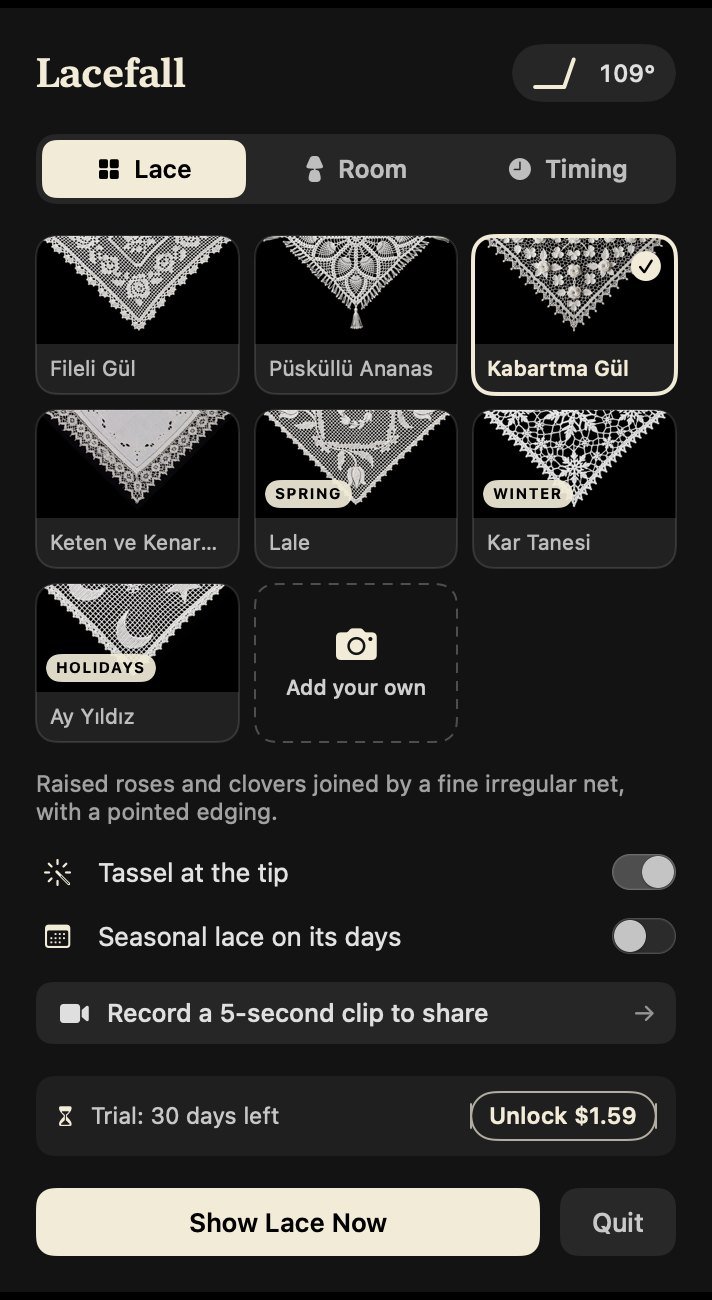
During the trial, a row near the bottom of the panel shows how many days are left. To enter your key:
- Click the Lacefall icon in the menu bar to open the panel.
- Click the Unlock button with the price in the trial row. The key field appears below it.
- Paste your key into the Licence key (LF1-…) field. Every Lacefall key starts with
LF1-. - Click Activate. Lacefall confirms with “Unlocked. Thank you!” and shows who the licence belongs to.
The key is checked on your Mac itself; there is no account to create and nothing to sign in to. If Lacefall says the key isn’t valid, it reminds you to check that all of it was pasted. Once the key is accepted, the trial row disappears. The shop opens with the launch.