Lacefall
Does a screen saver drain your MacBook’s battery?
The name is a leftover from old monitors. A modern screen saver doesn’t save anything; it keeps the display lit and draws a moving picture, and both cost power. On a desk that hardly matters. On a laptop running on battery, a few settings make the difference.
Where the power goes
While a screen saver runs, the Mac is fully awake. Two things use most of the energy:
- The display. A lit screen is one of the biggest consumers of power in a laptop. Brightness matters more than almost anything else.
- Drawing the picture. Animation keeps the graphics hardware busy. Smooth, fast, detailed motion costs more than slow, simple motion.
A dark display uses far less than any screen saver, and sleep uses less still. That is the trade-off: a screen saver is something to look at, and looking costs a little energy.
Let the display turn off in the end
The single most useful setting is in System Settings > Lock Screen: Turn display off on battery when inactive. Set it a little later than the screen saver, so you still see the screen saver when you step away briefly, and the display goes dark if you are gone for longer.
Remember the order. A screen saver only appears while the display is on, so if the display turns off first, you won’t see the screen saver at all. Our guide on idle time and the lock screen explains how the timers fit together.
Battery settings that help
Open System Settings > Battery on your MacBook. Depending on the model and macOS version, you will find some of these:
- Low Power Mode reduces energy use to make the battery last longer. On some models it appears as an Energy Mode with Low Power, Automatic and High Power.
- Slightly dim the display on battery, under Options, lowers the brightness a little whenever the adapter is unplugged.
- Last 24 Hours and Last 10 Days show how the battery level and screen use have changed, which helps you see whether idle time is really the problem.
Choose a screen saver with the battery in mind
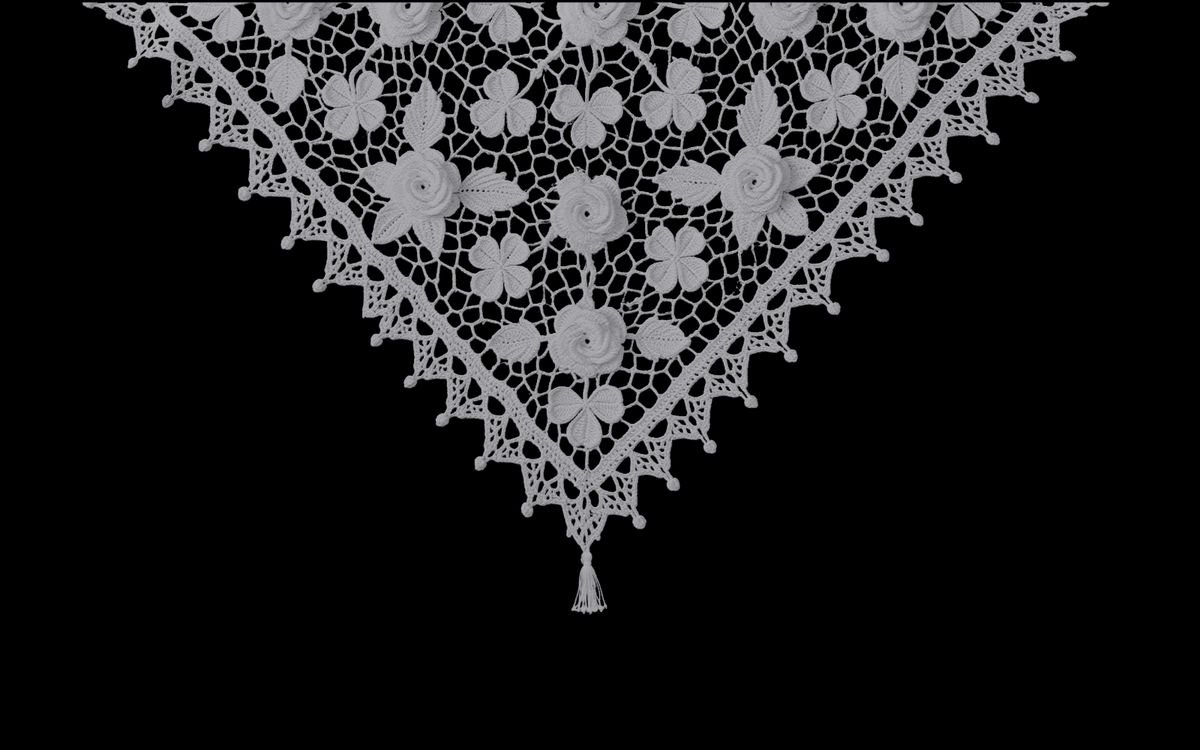
- Darker is gentler. A mostly dark picture at moderate brightness is easier on the battery and on the room.
- Slower is cheaper. Gentle movement needs less drawing than fast, busy scenes.
- Plug in for long idle stretches. If the Mac will sit unused for hours, either connect the adapter or let the display go dark.
Measure it yourself
The honest answer to “how much?” depends on your Mac, the brightness and the screen saver. A simple test settles it:
- Unplug the adapter and note the battery percentage.
- Let the screen saver run for 30 minutes without touching the Mac, then note the percentage again.
- Repeat with the display set to turn off instead, and compare.
The Last 24 Hours chart in Battery settings shows the same story afterwards.
And the screen itself
Any picture that stays exactly the same for hours is worth avoiding on any display. Screen savers that move slowly, or that drift a little over time, never leave a part of the image fixed in one place.
For what happens when you simply close the lid instead, see our guide on closing and opening a MacBook.
How Lacefall helps
Lacefall was made to be gentle on a MacBook running on battery:
- It slows down on battery. When the adapter is unplugged, Lacefall draws the lace at a lower frame rate. The cloth moves just as softly, with less work.
- It slows down further when nothing happens. After a few minutes on battery with nothing happening, it drops to a very low frame rate, enough for slowly gathering dust.
- It can hand over to a dark screen. In the Timing tab, Screen goes dark after lets the lace fade to black after the time you choose, or never.
- It never stands still. The image drifts very slowly, so no part of it stays in one place for hours.
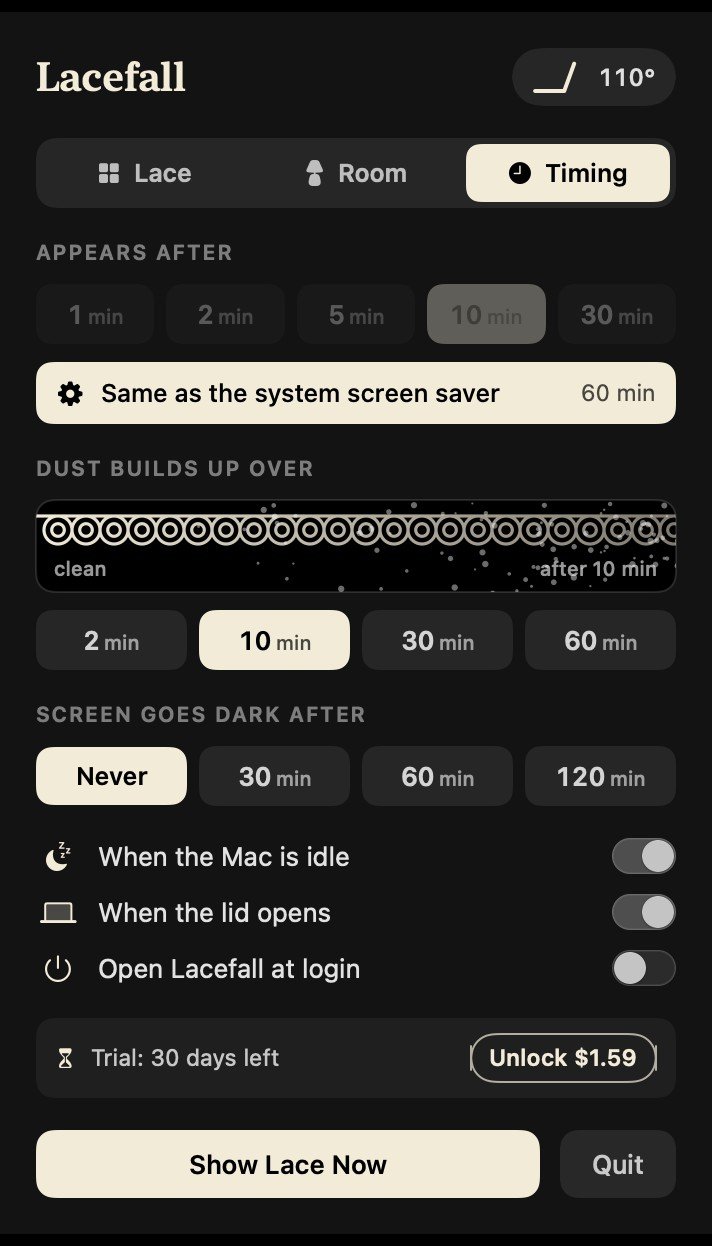
Choosing Black behind the lace in the Room tab keeps the scene at its darkest. When the adapter goes back in, Lacefall returns to full smoothness by itself.