Lacefall
A calmer Mac desk: wallpaper, menu bar and screen saver
A desk setup is mostly the room: the light, the chair, the cup. The screen is the brightest thing in it, though, and it is the part that changes most easily. A few small, reversible choices make it feel calmer.
Start with the room, not the screen
Look at the desk before you open any settings. Is the room warm or cool, busy or bare, wood or white? The calmest setups are the ones where the screen agrees with the space around it instead of competing with it. Everything below is about making the screen agree.
Choose one wallpaper and keep it
A wallpaper you change every week becomes noise. Pick one image you would happily look at for months.
- Use your own photo. In System Settings > Wallpaper, click Add Photo, then choose From Photos or Choose to pick a file. You can also Control-click an image in Finder and choose Set Desktop Picture.
- Or let it change slowly. Apple’s Dynamic Wallpapers change with the time of day, which suits a desk you sit at from morning to evening.
- Prefer quiet images. Large areas of a single tone, a texture, a corner of a room. Busy pictures fight with the windows on top of them.

Lighten the menu bar
The menu bar is where clutter collects without anyone noticing. Three habits help:
- In System Settings > Menu Bar, show only the items you actually use. Some can be set to Show When Active, so they appear only when they matter.
- Rearrange status icons by holding ⌘ Command while you drag them, and remove one by Command-dragging it out of the bar.
- If you like a completely clean screen, the menu bar can hide itself: choose when under Automatically hide and show the menu bar, and move the pointer to the top edge to bring it back.
Our guide on managing menu bar apps goes further.
Clear the desktop itself
A wallpaper only calms the screen if you can see it. If the desktop has become the place where downloads and screenshots land, give them one folder and move everything there once a week. The point is not to be tidy for its own sake; it is to have one surface on the screen that stays the same from day to day.
Quiet the interruptions
A calm desk that pings every few minutes is not calm. macOS lets you choose which people and apps may notify you, and when. Our guide on a calmer workspace with Focus shows how to set that up, including a schedule so it turns on by itself.
Give the screen something to do when you leave
A Mac spends a surprising part of the day idle: during calls, meals, a walk. What it shows then is part of the desk too. A screen saver that suits the room keeps the desk looking intentional when nobody is using it; a dark screen is the most restful option of all, and a sensible one on battery.
Whichever you choose, set it once in System Settings and stop thinking about it. Our guide on changing the screen saver shows where the setting lives in each macOS version.
Match the brightness to the room
A screen much brighter than the room around it is tiring to sit beside, and it pulls the eye every time you look up. In the evening, turn the brightness down until the screen roughly matches the lamp on the desk. Darker wallpapers and a dark screen saver help with the same thing.
Keep it reversible
None of this needs an app you will regret installing. Every change above is a setting you can undo in a minute. Try one change a week and keep the ones you stop noticing; that is usually the sign that they fit.
How Lacefall helps
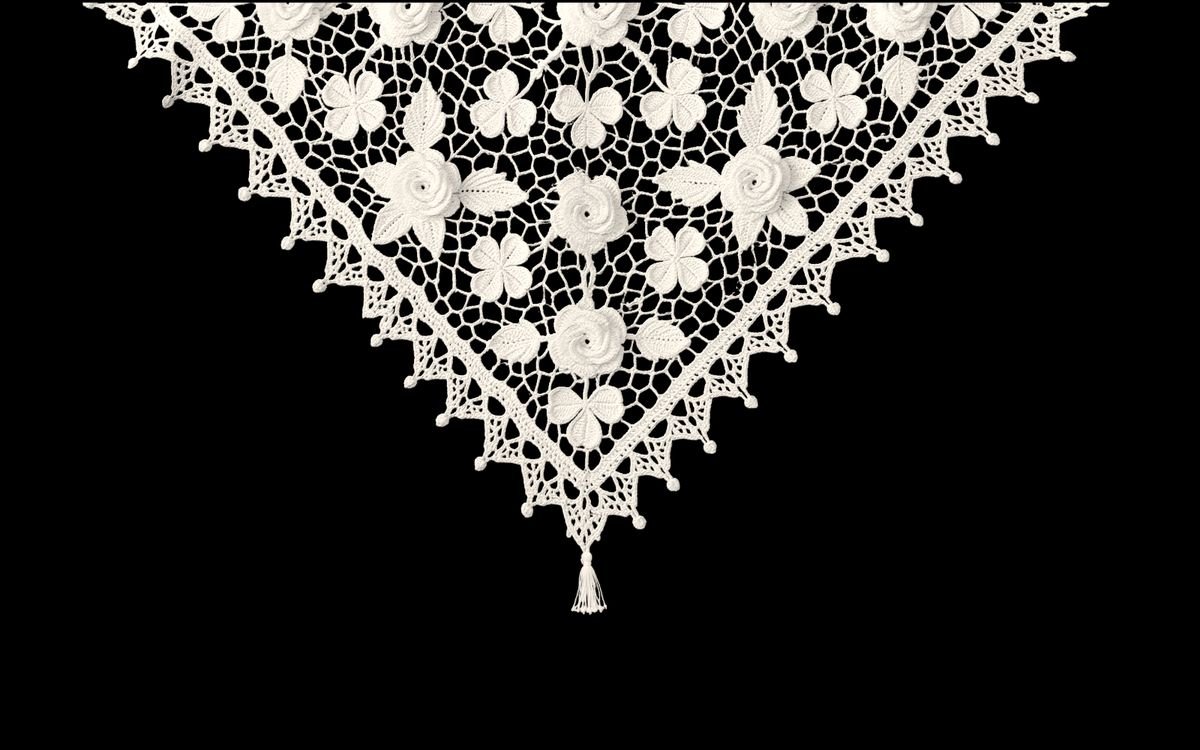
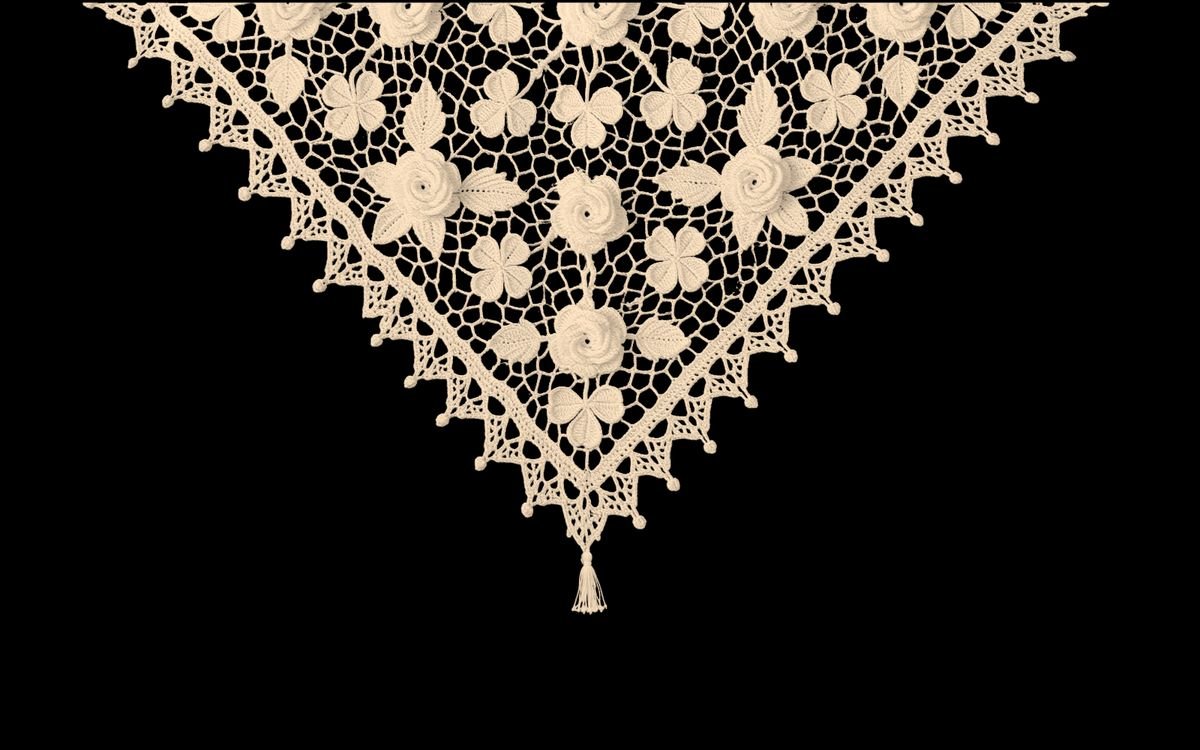
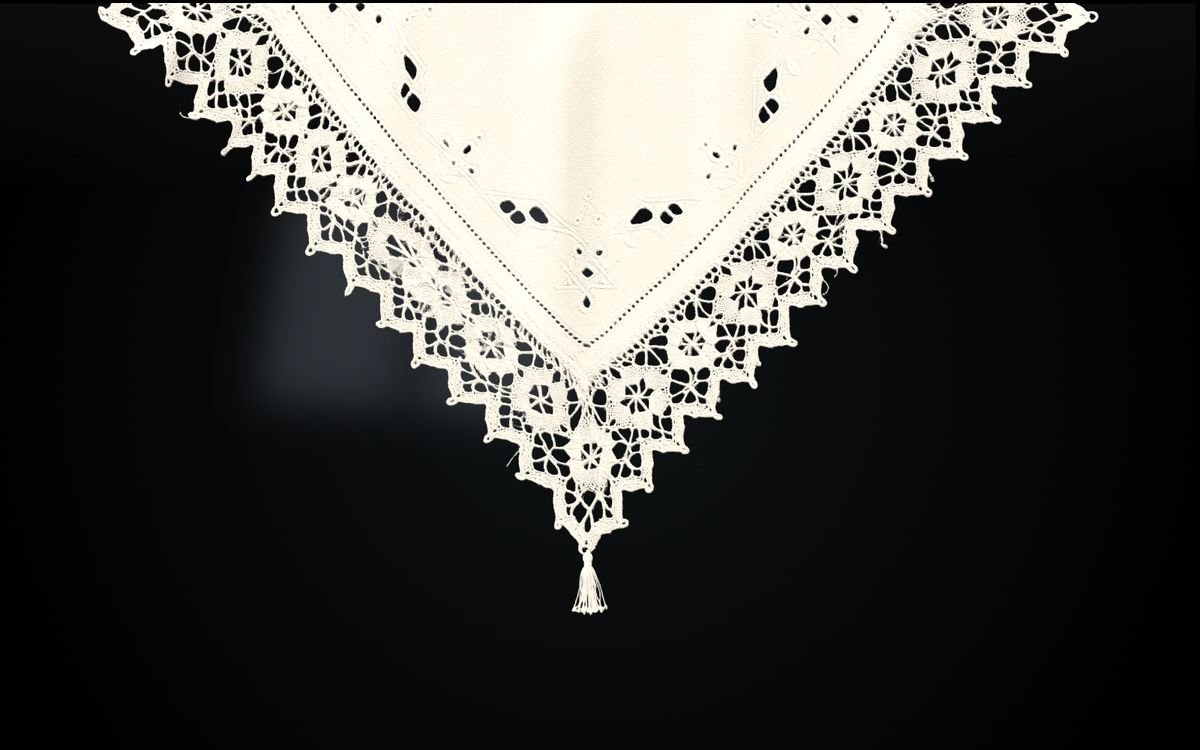
Lacefall was made for exactly this: a white lace doily that hangs from the top edge of the screen, like the cloth that once sat on top of a television, and moves like real fabric when you tip the MacBook lid.
In the Room tab you choose what sits behind the lace:
- Black: the plainest choice, and the darkest.
- Tube TV glass: a dark, softly lit glass.
- My wallpaper: your own desktop picture, so screen saver and desktop match.
You can also let the light follow the time of day and turn the breeze up or down. Tube TV glass and your own wallpaper are part of the full version; the trial includes everything for a month. You can also turn on Cloth sound for a soft rustle as the lace moves.