Lacefall
What happens when you close and open your MacBook lid
The lid is the simplest control a MacBook has, and most people use it dozens of times a day without thinking about it. Here is what actually happens when you close it and open it again, and how it fits with the screen saver and lock settings.
Closing the lid puts the Mac to sleep
Apple’s guide is short on this point: on a Mac laptop, closing the display puts the Mac to sleep. Sleep is a low-power state. Your apps, windows and documents stay open exactly where they were, but the screen is off and most of the work stops.
A few things follow from that:
- Open work is kept, but save anyway. Sleep keeps your documents open. It does not save them for you, so saving before you close the lid is still a good habit, especially before a trip.
- Calls and streams stop. A video call drops and music stops playing when the Mac goes to sleep.
- Long tasks may pause. Don’t count on a large download or an export finishing with the lid closed. Leave the lid open and let the display turn off instead.
Opening the lid wakes it
Open the display and the Mac wakes. What you see first depends on your Lock Screen settings. If Require password after screen saver begins or display is turned off is set to immediately, you will see the login window and type your password or use Touch ID. With a short delay, a quick close and reopen may bring you straight back to your desktop.
For a laptop that travels, asking for the password immediately is the safer choice. Our guide on idle time and the lock screen explains how the delay works.
Lid closed, screen saver, display off: the difference
These three are easy to confuse, because in each case you are not using the Mac.
- Screen saver: the Mac is fully awake. The display shows a moving picture until you press a key or move the pointer.
- Display off: the Mac is still awake, but the screen is dark. Downloads and music keep going.
- Sleep: the Mac itself rests. This is what closing the lid does, and it uses the least energy of the three.
If you step away for a few minutes, the screen saver or a dark display is enough. If you are leaving for an hour or putting the Mac in a bag, close the lid.

Sleep without closing the lid
You don’t need the lid to put a Mac to sleep. Choose Apple menu > Sleep and the Mac rests with the lid still open. To wake it, press a key or click the trackpad. This is handy when the Mac is connected to things on the desk and you’d rather not fold it shut.
Before you put it in a bag
- Close the lid fully. A Mac that is only half closed may not go to sleep.
- Check that nothing is keeping it awake, such as a call that is still connected.
- If the bottom of the Mac is warm after a long session, give it a minute before you zip the bag.
Battery while the lid is closed
Sleep uses very little power, so a MacBook can sit closed for a long time and still have charge. Battery settings such as Low Power Mode and Optimized Battery Charging live in System Settings > Battery. Our battery guide covers what a screen saver costs compared with a dark screen.
Some MacBooks know the angle of the lid
Recent MacBook models can measure how far the lid is open. You rarely notice it, because macOS mostly cares whether the lid is open or closed. A few apps read the angle itself and use it as a gentle control: tilting the screen becomes a small gesture of its own.
How Lacefall helps
Lacefall uses the lid in two ways.
First, it can greet you. Lacefall can run as the macOS screen saver, or on its own from the menu bar. In the second case, turn off Let macOS decide when it appears in the Timing tab and you can choose When the lid opens, so the lace is there when you open your MacBook, alongside When the Mac is idle for the usual screen saver moment. Any key, or a real movement of the mouse, takes it away.
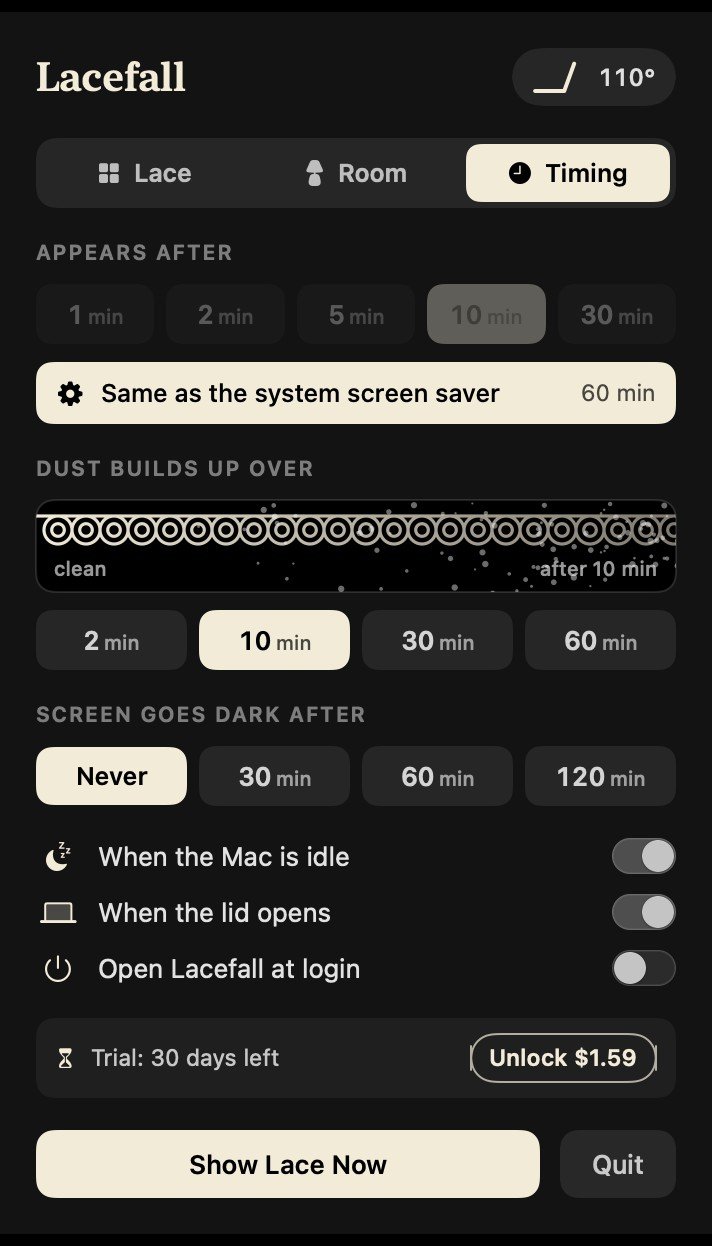
Second, the lace hangs from the top edge of the screen and moves like cloth when you tilt the lid. Leave the Mac for a while and the lace slowly gathers dust; dip the lid quickly and the dust shakes off. The panel shows the live lid angle, so you can see that the sensor is being read.
If your Mac has no readable lid sensor, the panel says No lid sensor. On those Macs, on desktop Macs and on external displays, a soft breeze moves the cloth instead; you choose how strong it is in the Room tab.