Lacefall
How to manage menu bar apps and icons on your Mac
The right-hand side of the menu bar fills up quietly. Every utility you install wants a small icon there, and after a year the row can stretch halfway across the screen. Here is how to put it back in order, using only what macOS already offers.
What lives on the right side
Apple calls the icons on the right of the menu bar status menus. Some belong to macOS itself: Wi-Fi, battery, sound, Control Center, the clock. Others come from apps you have installed. Many small apps live only there: they have no window and no icon in the Dock, just a symbol in the menu bar that opens a menu or a panel when you click it.
That makes them convenient, and also easy to forget. An app that lives in the menu bar keeps running until you quit it.
Rearrange the icons
Hold down the ⌘ Command key and drag an icon left or right. Release it where you want it. Put the ones you use every day nearest the clock, where your eye goes first.
Remove the ones you don’t need
To remove a status menu quickly, hold ⌘ Command and drag the icon out of the menu bar, then let go. This works for many of the icons that belong to macOS. You can bring them back from System Settings at any time.
Icons that belong to an app usually stay while the app is running. To remove those, quit the app, or turn its icon off in the app’s own settings if it offers that.
Choose what macOS shows
Choose Apple menu > System Settings, then click Menu Bar in the sidebar. You may need to scroll down.
- For items such as Focus, Sound or Now Playing, choose Show When Active to see the icon only when it matters, or Always Show to keep it.
- Under Allow in the Menu Bar, recent versions of macOS list apps that provide menu bar items. Turn off the ones you don’t want to see.
- Many system controls also live in Control Center, so a separate icon for each one is often unnecessary.
Let the menu bar hide itself
In the same settings, Automatically hide and show the menu bar offers Always, On Desktop Only, In Full Screen Only or Never. When it is hidden, move the pointer to the top edge of the screen to bring it back. On a smaller laptop screen this gives you back a strip of space and a cleaner view.

Quit a menu bar app
Because menu bar apps have no window, the usual way to quit them is inside their own menu. Click the icon and look for Quit, usually at the bottom of the menu or panel.
Stop them from coming back
Many menu bar apps start themselves every time you log in. If you quit one and it returns the next morning, check System Settings > General > Login Items & Extensions. Remove the app from the list of items that open at login, or turn off its own “open at login” option. Our guide to a calmer workspace goes through that list in more detail.
A simple rule
Keep an icon if you click it every week or if it tells you something you need at a glance. Everything else can go. If you find you miss one, it takes a minute to bring it back.
How Lacefall helps
Lacefall is a menu bar app. It has no window and no Dock icon; everything is in the panel that opens when you click its icon.
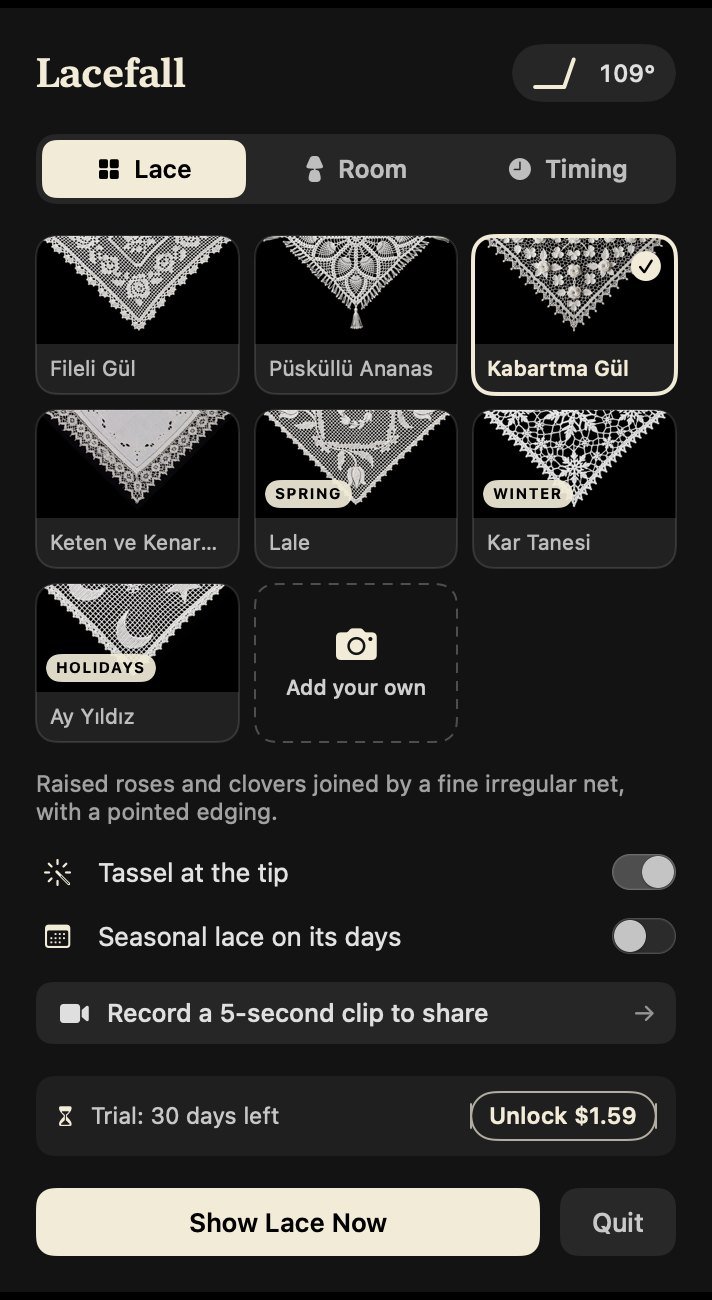
- Three tabs: Lace for the cloth, Room for the clock, background, breeze and light, and Timing for when it appears.
- Show Lace Now brings the lace up straight away.
- Language lets you follow the Mac’s language or choose Turkish or English.
- Quit closes Lacefall completely.
Lacefall only opens at login if you turn on Open Lacefall at login in the Timing tab, and switching it off removes it from the macOS login list again. If you use Lacefall as the system screen saver, macOS can still show it from System Settings.