Lacefall
A calmer workspace on your Mac: Focus, fewer login items, real breaks
A calm workspace is less about what is on the desk than about what keeps interrupting it. macOS has the tools to turn most of the noise down: Focus for notifications, Login Items for the apps that start by themselves, and a few habits for the breaks in between.
Decide who can reach you, and when
Focus is the macOS feature for this. It silences notifications except from the people and apps you choose, and it can turn itself on at set times.
- Choose Apple menu > System Settings, then click Focus in the sidebar.
- Pick an existing Focus, such as Do Not Disturb or Work, or click Add Focus to make a new one.
- Under Allowed People and Allowed Apps, choose who and what may still get through.
- Under Set a Schedule, add a schedule based on time, location or the app you are using.
Keep the allowed list short. A Focus that lets everyone through is just the normal day with a different name.
Turn it on by hand when you need it
Schedules cover the routine. For the rest, open Control Center in the menu bar and click Focus to turn Do Not Disturb or another Focus on or off. If you use it often, you can choose in Menu Bar settings to keep Focus visible in the menu bar.
Turn some notifications off for good
Focus is for hours of the day. Some apps never need to interrupt you at all. In System Settings > Notifications, click an app and turn off Allow notifications. It is worth going through the list once: most people find a handful of apps they have never wanted to hear from.
Trim what starts at login
Every app that opens by itself at login adds an icon, a window or a notification to the start of the day. Most people have more of these than they think.
- Choose Apple menu > System Settings, click General, then Login Items & Extensions.
- Look through the list of items that open at login. Select any you don’t need every day and click the Remove button below the list.
- Further down, under Allow apps to run in the background, check which apps run quietly in the background and turn off any you don’t recognise or don’t use.
Removing an app from this list doesn’t delete it. It simply waits until you open it.
Make breaks visible
The hardest part of a calm day is stopping. A few things help:
- End the Focus on purpose. Set the work Focus to end before lunch, so the change itself becomes a reminder.
- Lock the Mac when you stand up. Apple menu > Lock Screen turns a walk to the kitchen into a real pause instead of a half-break with the work still on screen.
- Let the screen tell you how long you were gone. A screen saver that changes slowly while you are away makes the length of a break visible when you come back.

Evenings
A separate evening Focus, scheduled to start at the end of the working day, keeps work apps quiet without switching anything off by hand. Pair it with a lower screen brightness and a darker screen saver, and the Mac stops looking like an office after dark.
For the look of the desk itself, see our guide to a calmer Mac desk.
How Lacefall helps
Lacefall is a quiet thing to come back to. While you are away, dust slowly settles on the lace; how long that takes is up to you, under Dust builds up over in the Timing tab. When you sit down again, the dust tells you roughly how long the break was, and a quick dip of the MacBook lid shakes it off.
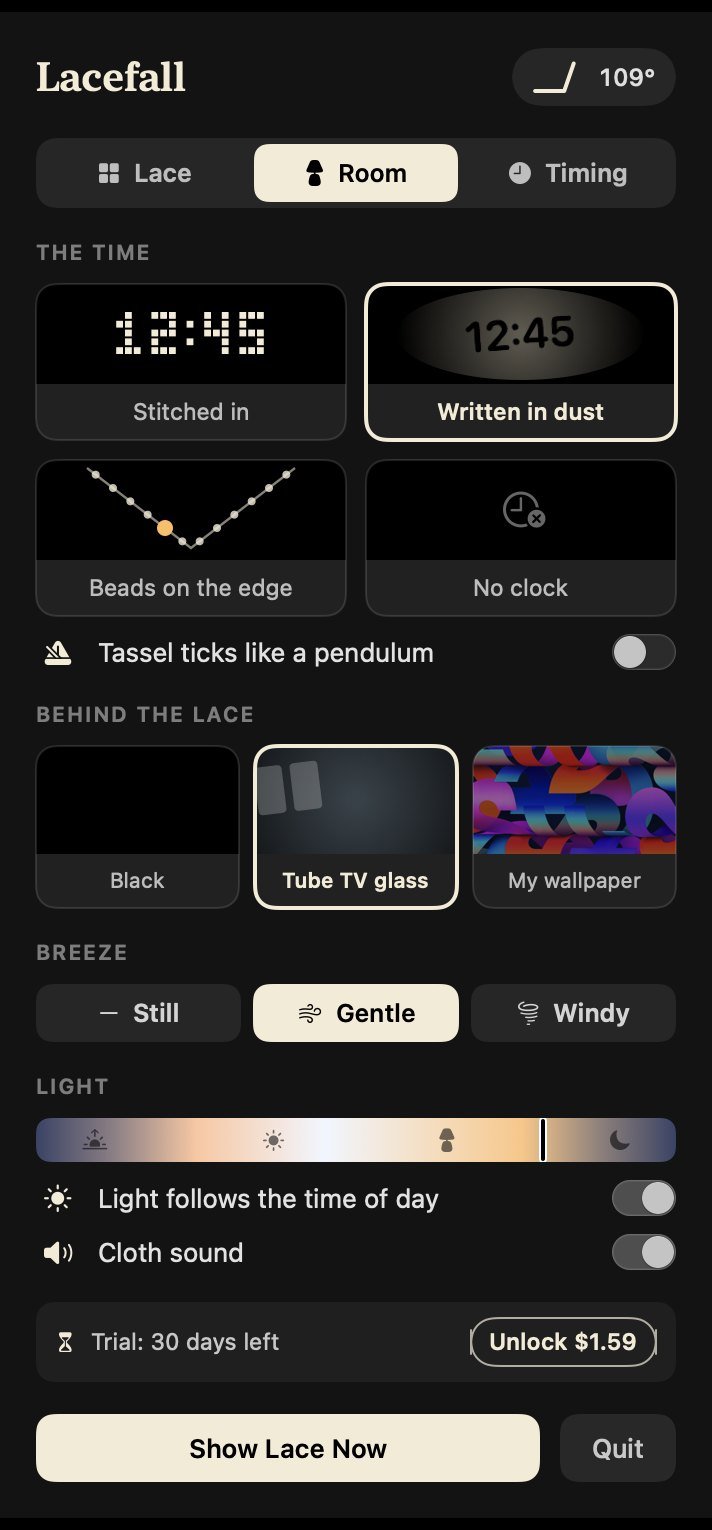
In the Room tab, Light follows the time of day lets the scene brighten in the morning and warm towards evening, and the breeze can be still, gentle or windy.
If you trim your login items, Lacefall can stay or go with one switch: Open Lacefall at login in the Timing tab adds or removes it from the same macOS list.